Managing Artists
This guide explains how to manage artists in the admin panel. As an administrator, you can create, view, edit, and manage artist accounts and their payout settings.
Accessing the Artists Section
- Log in to the admin panel with your administrator credentials
- Navigate to the main sidebar navigation
- Click on Artists to access the artist management interface
Viewing Artists
The Artists page displays a table with all artist accounts in the system. The table includes information such as:
- Artist name
- Email address
- Other relevant details
You can:
- Search for artists by name or email using the search bar
- Sort the table by clicking on column headers
- Filter artists based on various criteria
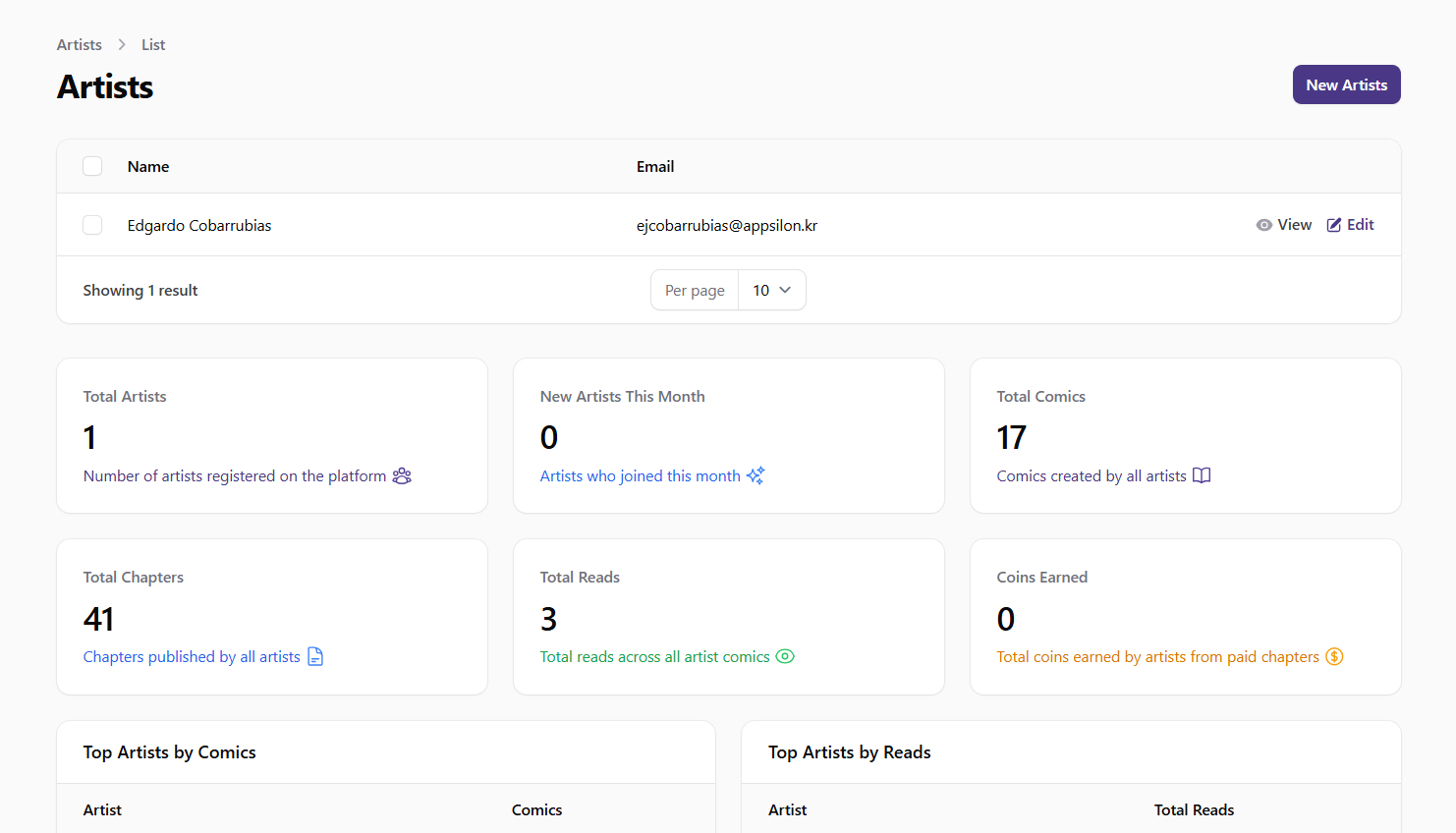 Screenshot: Artists list view
Creating a New Artist
To create a new artist account:
- Click the New Artist button at the top of the Artists page
- Fill in the required information:
- Name: Enter the full name of the artist
- Email: Enter a valid email address
- Profile Photo: Upload a profile photo (optional)
- Configure the artist's payout settings:
- Subscription Payout Percentage: Set the percentage of subscription revenue the artist receives
- Coin Payout Percentage: Set the percentage of coin revenue the artist receives
- Enter the artist's payment information (optional):
- Bank account details
- PayPal email
- Tax ID
- Click Create to add the new artist
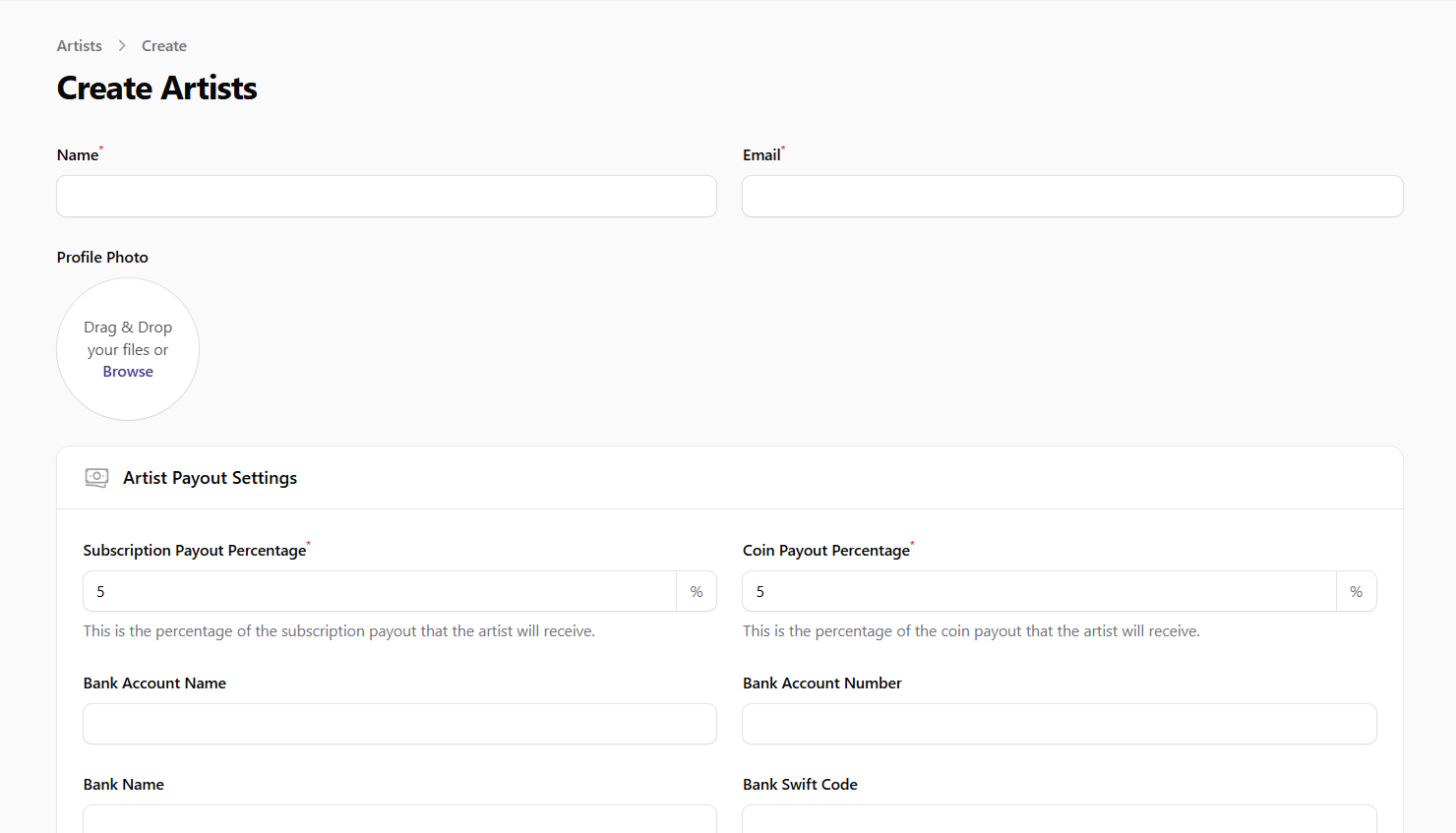 Screenshot: Create artist form
Viewing Artist Details
To view detailed information about an artist:
- Find the artist in the table
- Click on the artist's name or the View button
The artist detail page shows:
- Profile information (name, email, profile photo)
- Payout settings
- Payment information
- Associated comics
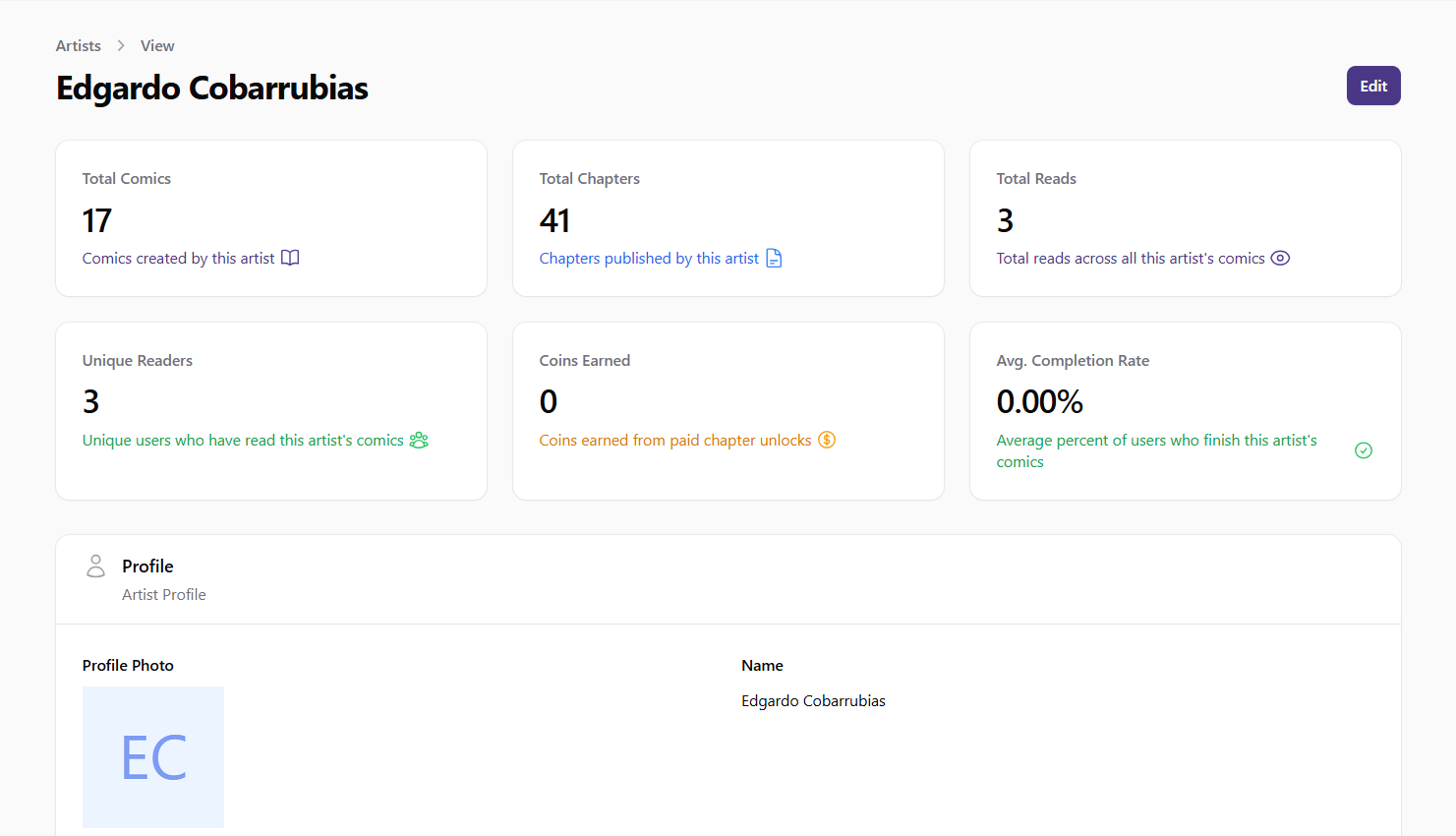 Screenshot: Artist details view
Editing an Artist
To edit an existing artist:
- Find the artist in the table
- Click the Edit button in the actions column
- Update the artist information as needed:
- Profile details
- Payout percentages
- Payment information
- Click Save to apply your changes
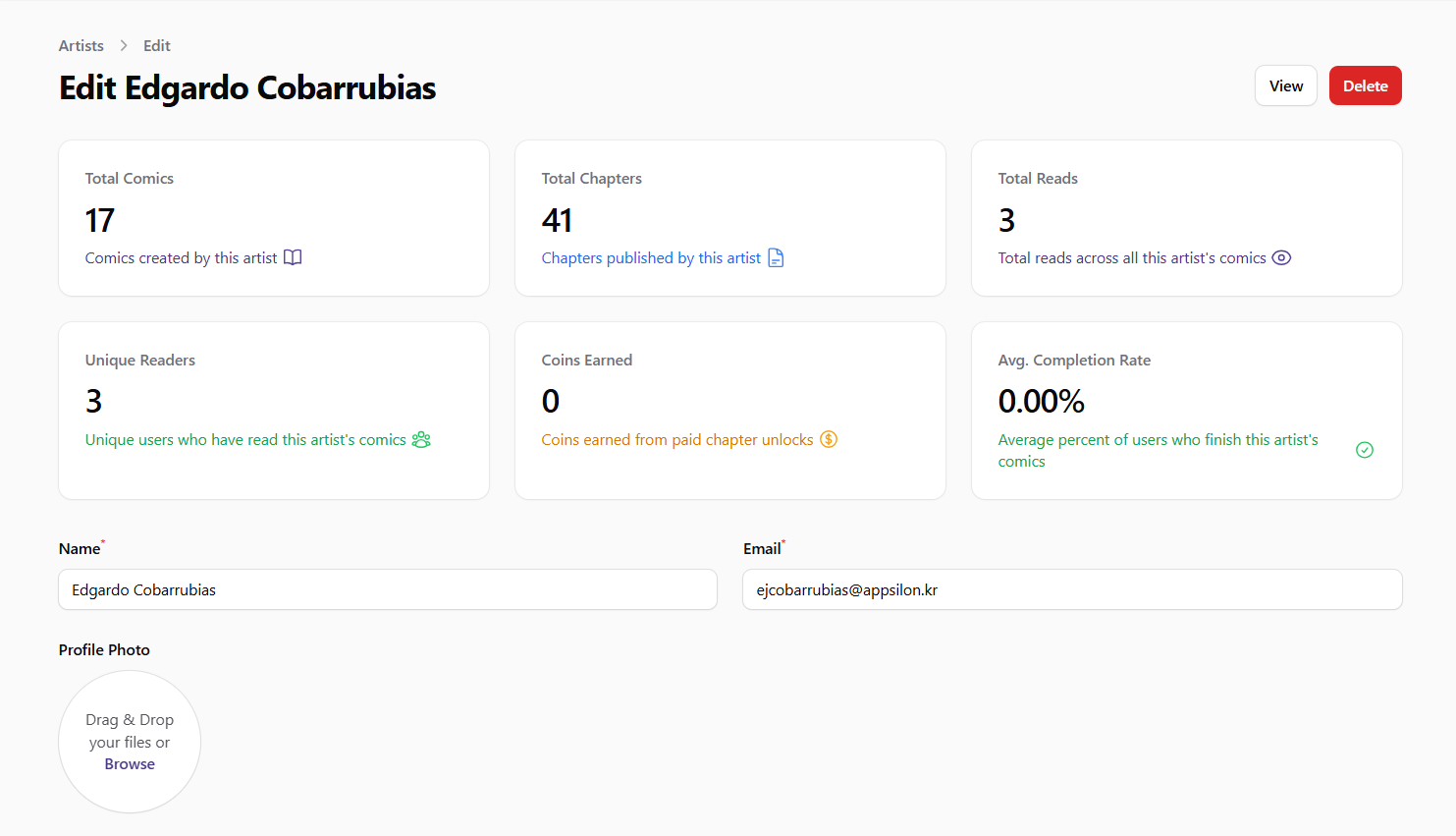 Screenshot: Edit artist form
Managing Artist Payout Settings
Artist payout settings determine how much revenue the artist receives from subscriptions and coin purchases:
- Navigate to the artist's edit page
- Locate the Artist Payout Settings section
- Configure the following settings:
- Subscription Payout Percentage: The percentage of subscription revenue allocated to the artist
- Coin Payout Percentage: The percentage of coin purchase revenue allocated to the artist
- Click Save to apply the changes
Default payout percentages are applied if no custom values are set.
Managing Artist Payment Information
To manage an artist's payment information:
- Navigate to the artist's edit page
- Locate the payment information fields:
- Bank Account Name
- Bank Account Number
- Bank Name
- Bank Swift Code
- PayPal Email
- Tax ID
- Update the information as needed
- Click Save to apply the changes
This information is used for processing payouts to the artist.
Viewing Artist Comics
To view comics associated with an artist:
- Navigate to the artist's detail page
- Scroll down to the Comics section
- Browse the list of comics created by the artist
You can click on any comic to view its details or manage it.
Best Practices
- Verify artist information before creating accounts
- Set fair and consistent payout percentages across artists
- Ensure payment information is complete and accurate before processing payouts
- Regularly review artist accounts and their associated content
- Communicate any changes to payout percentages to artists in advance