Managing Subscription Plans
This guide explains how to manage subscription plans in the admin panel. Subscription plans allow users to access premium content on the platform for a specified duration.
Accessing the Plans Section
- Log in to the admin panel with your administrator credentials
- Navigate to the Settings section in the sidebar
- Click on Plans to access the plan management interface
Viewing Plans
The Plans page displays a table with all subscription plans in the system. The table includes the following information:
- Name: The display name of the plan
- Price: The cost of the plan
- Duration Type: The type of duration (e.g., Monthly, Yearly)
- Duration Period: The number of duration units
- Hot: Whether the plan is marked as a "hot" or featured plan
You can:
- Search for plans by name
- Sort the table by clicking on column headers
- Reorder plans by dragging and dropping them (this affects how they appear to users)
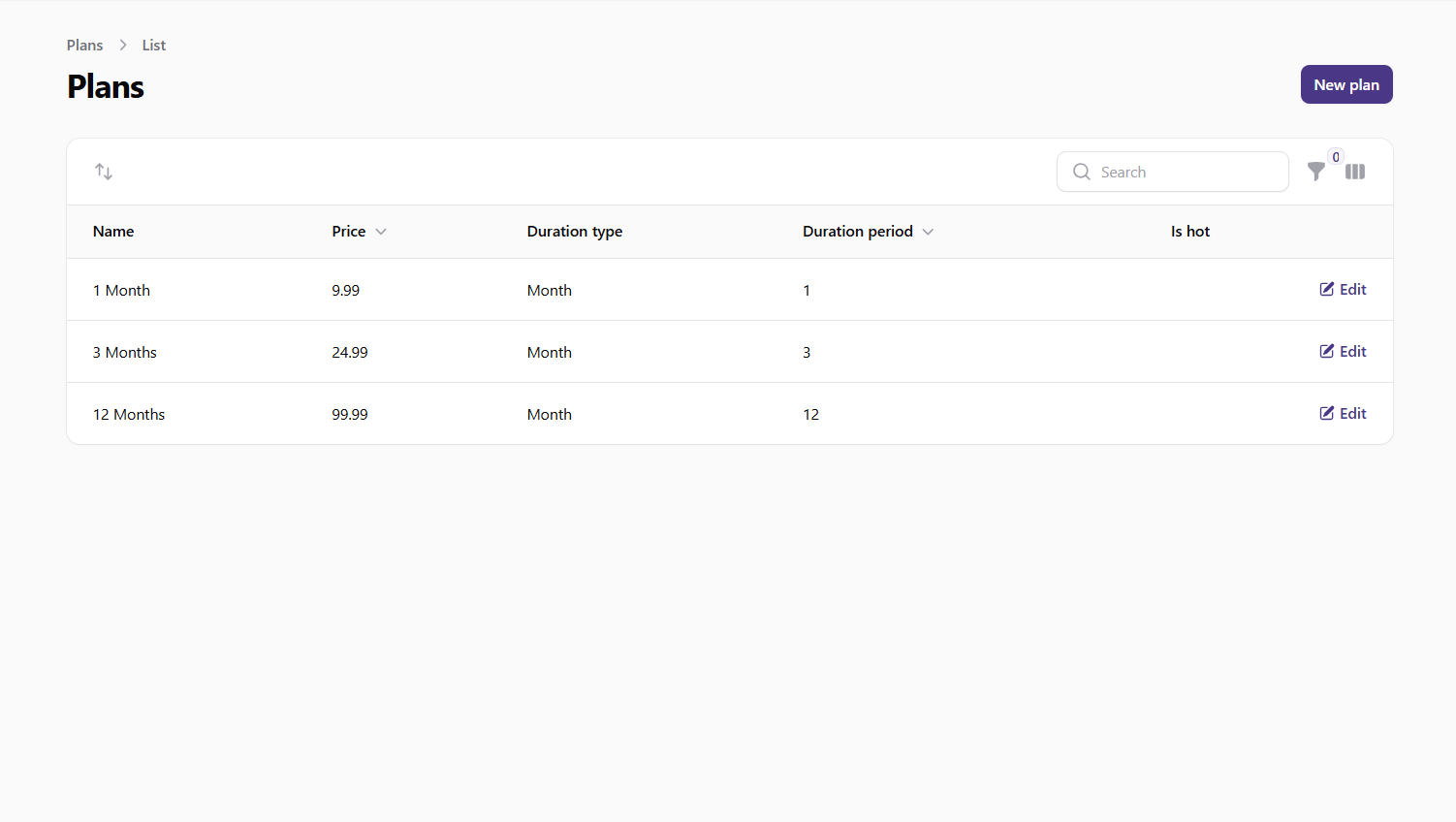 Screenshot: Plans list view
Creating a New Plan
To create a new subscription plan:
- Click the New Plan button at the top of the Plans page
- Fill in the required information:
- Name: Enter a descriptive name for the plan (e.g., "Monthly Premium", "Annual Basic")
- Description: Enter details about what the plan offers (optional)
- Price: Set the price for the plan
- Duration Type: Select the type of duration (e.g., Day, Week, Month, Year)
- Currency: The currency for the plan (default is USD)
- Duration Period: Enter the number of duration units (e.g., 1 for "1 Month", 12 for "12 Months")
- Is Hot: Toggle ON to mark the plan as featured
- Click Create to add the new plan
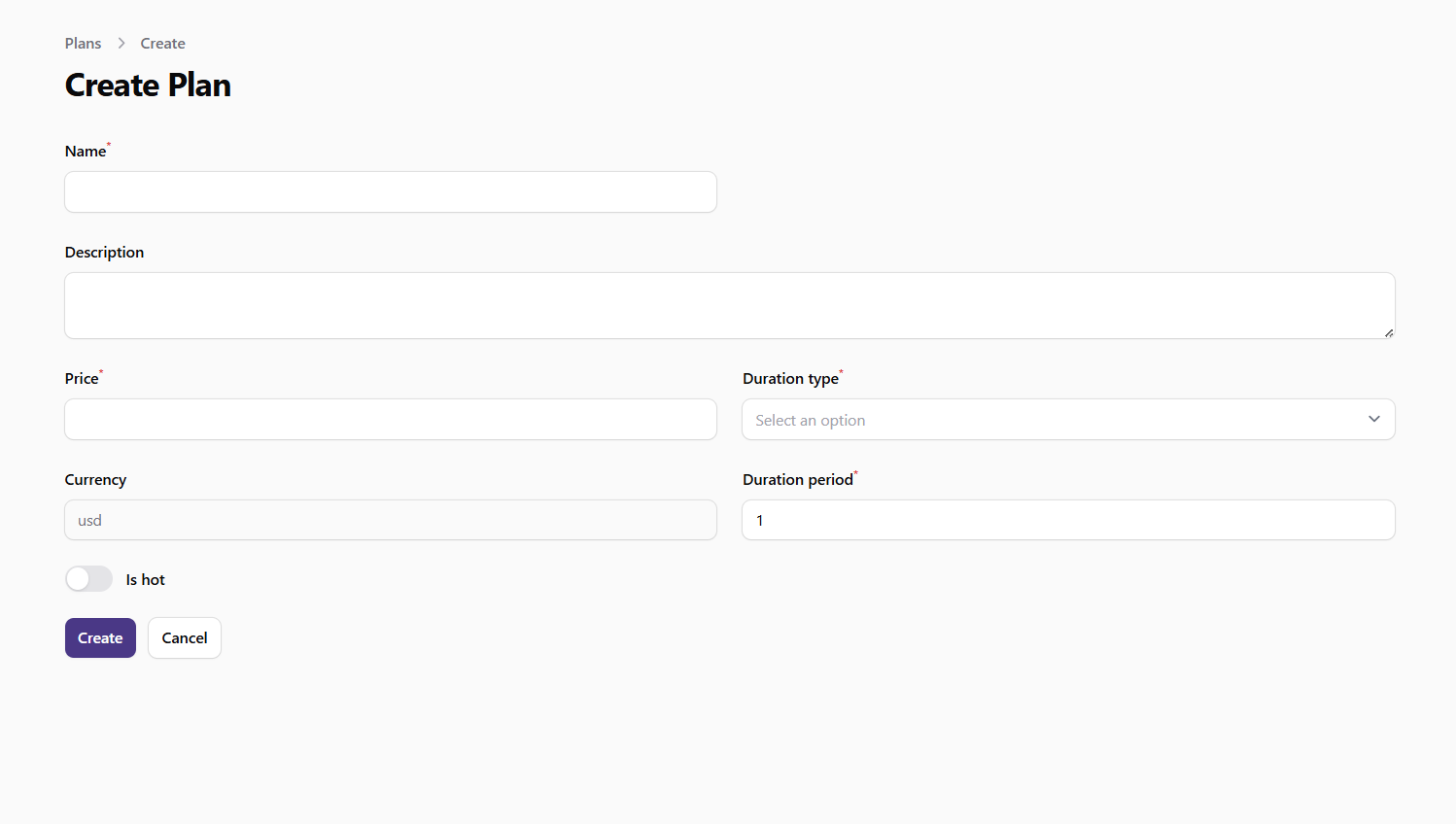 Screenshot: Create plan form
Editing a Plan
To edit an existing plan:
- Find the plan in the table
- Click the Edit button (pencil icon) in the actions column
- Update the plan information as needed
- Click Save to apply your changes
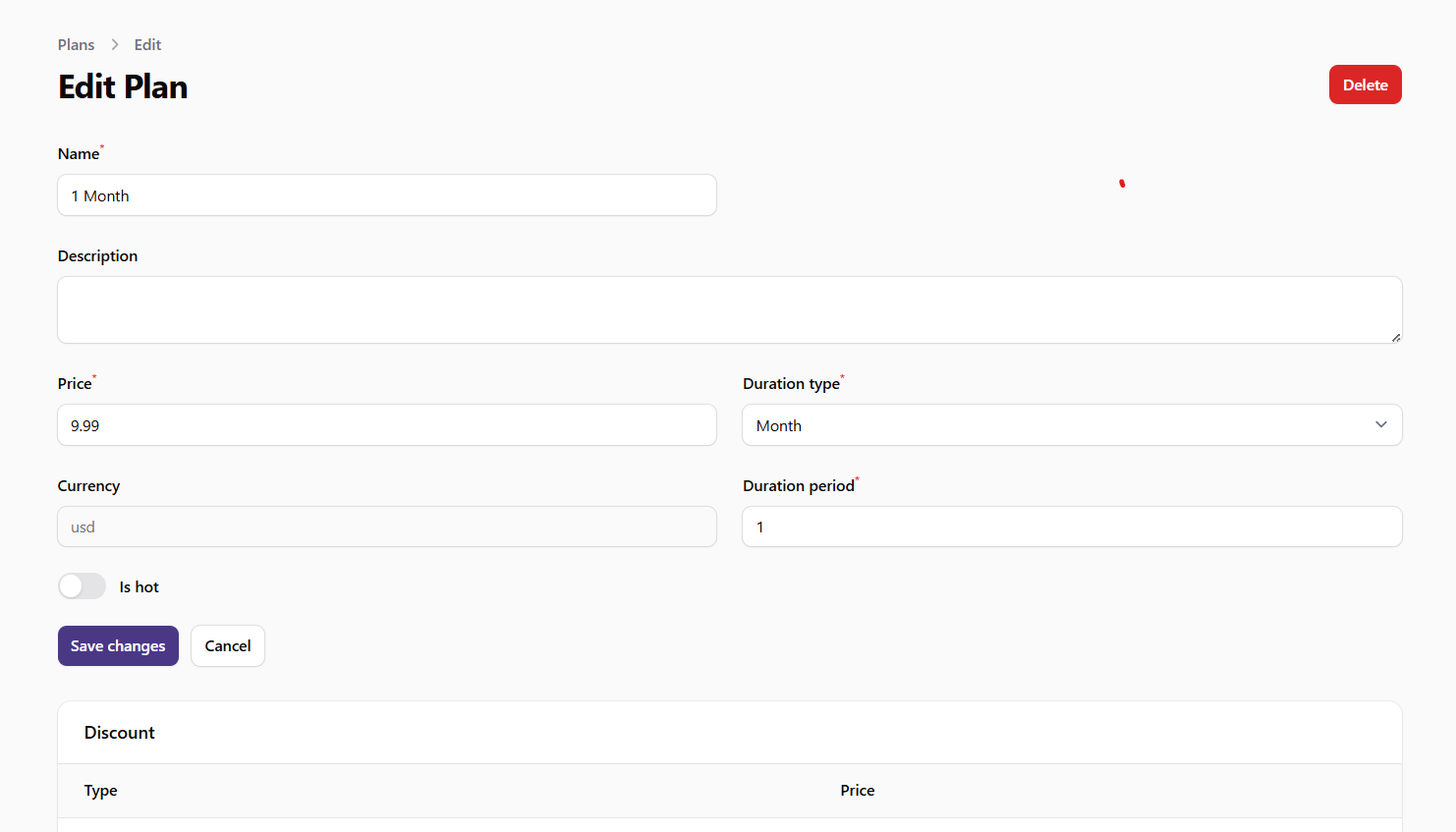 Screenshot: Edit plan form
Managing Plan Discounts
Plans can have discounts applied to them. To manage discounts for a plan:
- Navigate to the plan's edit page
- Scroll to the Plan Discounts section
- Here you can:
- View existing discounts
- Add new discounts
- Edit or remove existing discounts
Discounts can be set as a percentage off the regular plan price and can be configured to be active during specific date ranges.
Restoring Deleted Plans
If a plan has been deleted, you can restore it:
- Find the plan in the table (you may need to use the Trashed filter)
- Click the Restore button in the actions column
- The plan will be restored and made available again
Viewing Subscriptions
To view active subscriptions to your plans, you can use the Subscriptions section:
- Navigate to the Payments section in the sidebar
- Click on Subscriptions to view all active subscriptions
The Subscriptions page shows:
- Which users are subscribed to which plans
- The final price paid (including any discounts)
- When the subscription expires
- When the subscription was created
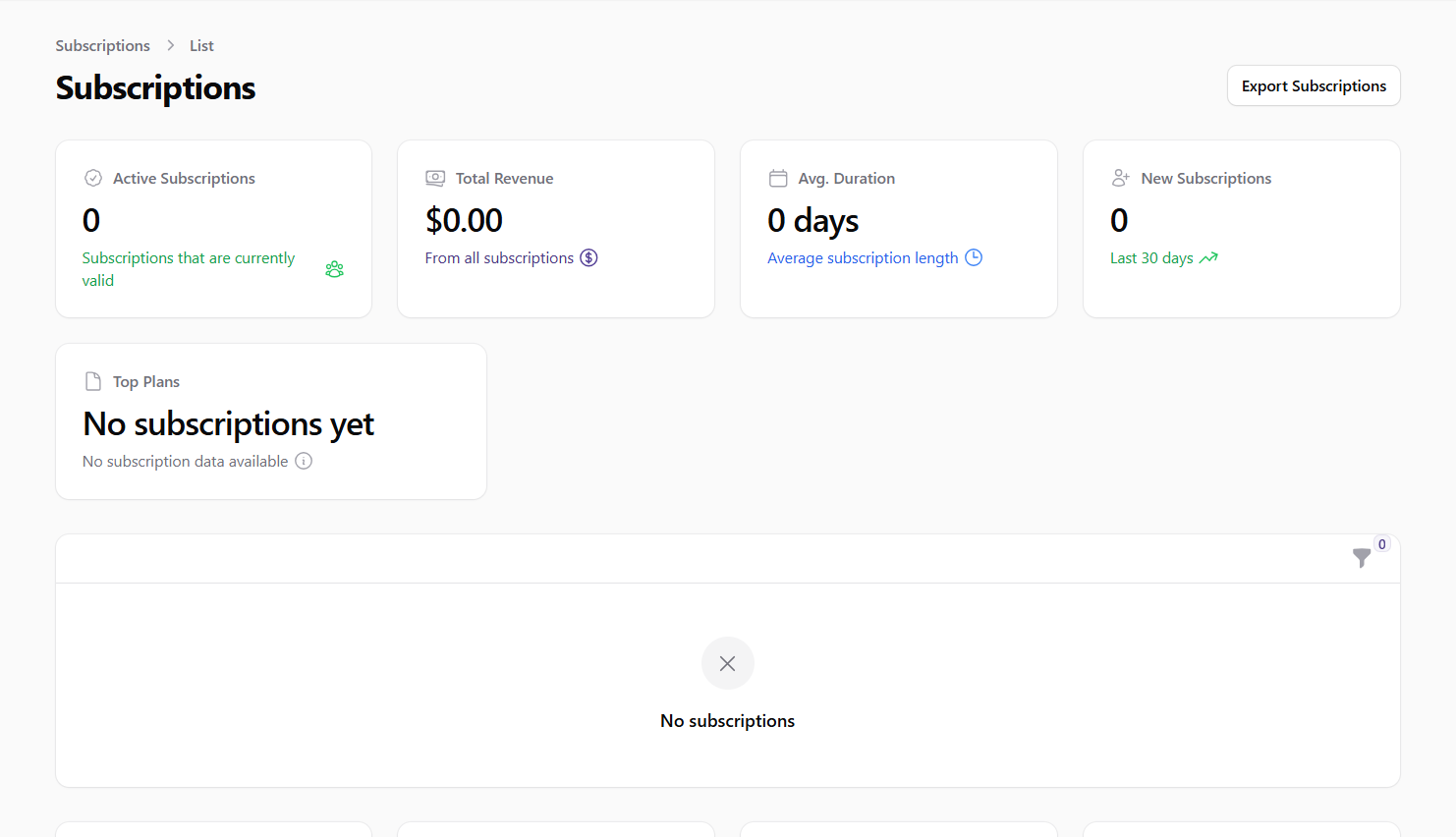 Screenshot: Subscriptions list view
Best Practices
- Clear Naming: Use descriptive names that clearly communicate what the plan offers
- Logical Pricing: Set prices that reflect the value of the content and features provided
- Strategic Discounts: Use discounts strategically for promotions or to encourage longer subscription periods
- Regular Review: Periodically review plan performance and adjust offerings as needed
- Careful Deletion: Be cautious when deleting plans as this can affect users with active subscriptions
- Featured Plans: Use the "Hot" designation to highlight recommended or popular plans
- Consistent Ordering: Maintain a logical order of plans (e.g., from lowest to highest price) to help users compare options