Managing Categories
This guide explains how to manage categories in the admin panel. Categories are used to organize comics and tickets, making it easier for users to find content based on genre, theme, or other classification criteria.
Accessing the Categories Section
- Log in to the admin panel with your administrator credentials
- Navigate to the Settings section in the sidebar
- Click on Categories to access the category management interface
Viewing Categories
The Categories page displays a table with all categories in the system. The table includes the following information:
- Type: The category type (Comics or Ticket)
- Name: The display name of the category
- Slug: The URL-friendly version of the name
- Description: A brief description of the category
You can:
- Search for categories by type, name, slug, or description
- Sort the table by clicking on column headers
- Toggle columns to customize your view
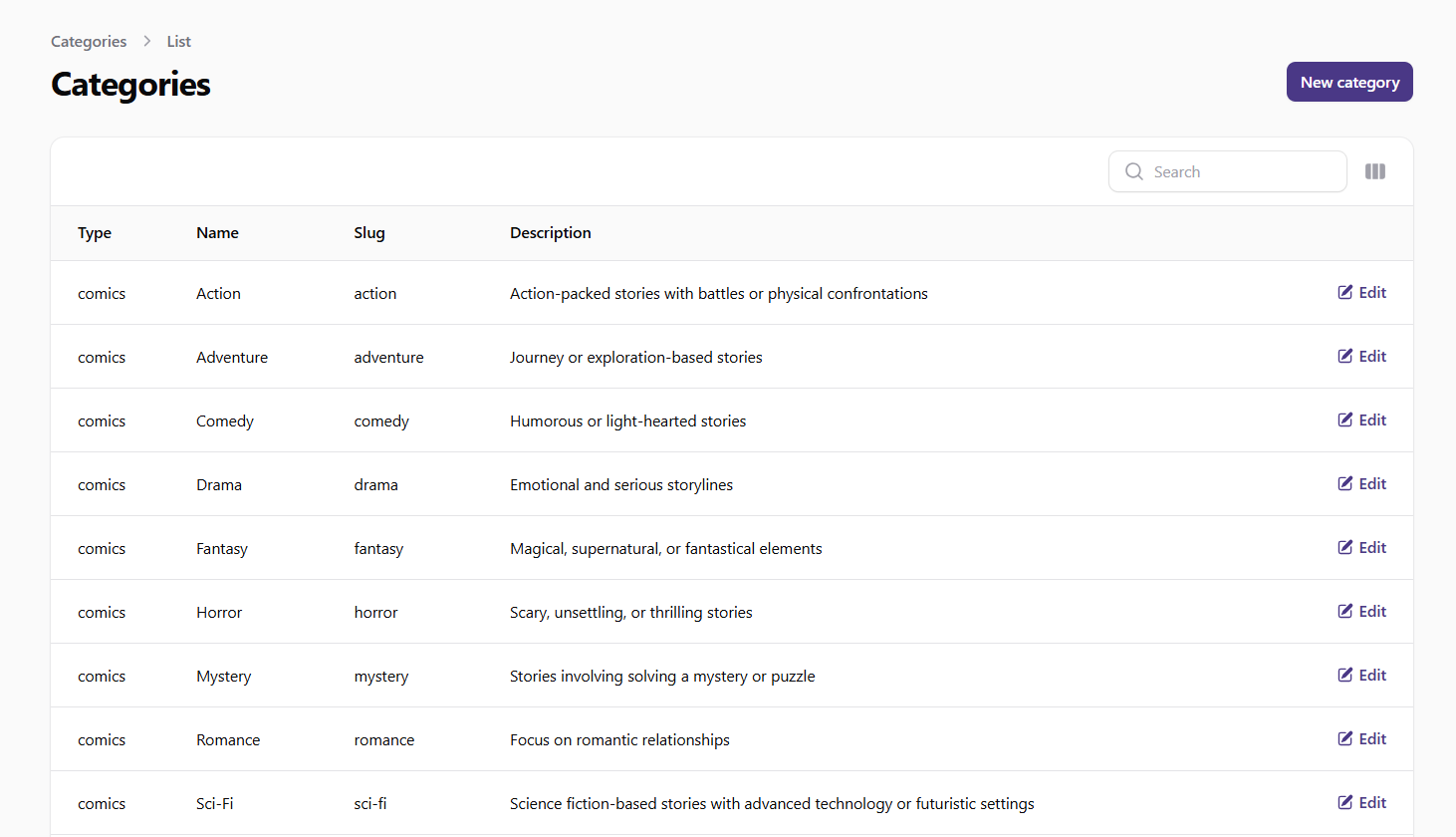 Screenshot: Categories list view
Creating a New Category
To create a new category:
- Click the New Category button at the top of the Categories page
- Fill in the required information:
- Name: Enter a descriptive name for the category (e.g., "Action", "Romance", "Technical Support")
- Slug: Enter a URL-friendly version of the name (typically lowercase with hyphens instead of spaces)
- Type: Select the category type:
- Comics: For organizing comic content
- Ticket: For organizing support tickets
- Description: Enter a brief description of the category (optional)
- Click Create to add the new category
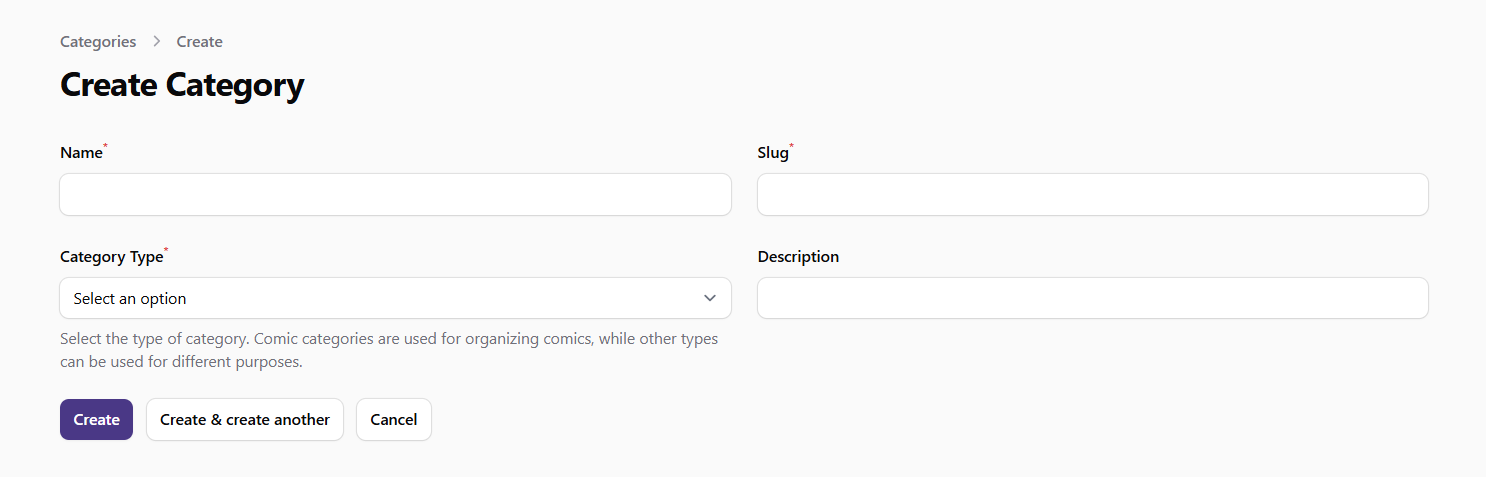 Screenshot: Create category form
Editing a Category
To edit an existing category:
- Find the category in the table
- Click the Edit button (pencil icon) in the actions column
- Update the category information as needed:
- Name: Change the display name
- Slug: Modify the URL-friendly version
- Type: Change the category type
- Description: Update the description
- Click Save to apply your changes
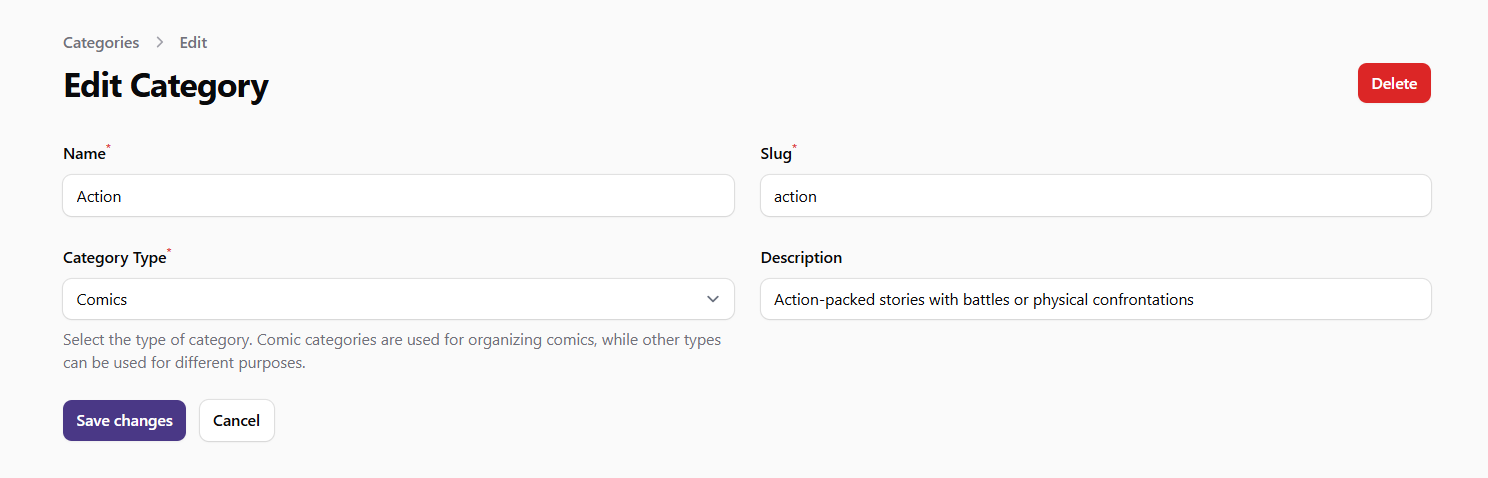 Screenshot: Edit category form
Using Categories
Once categories are created, they can be used throughout the platform:
Comic Categories
Comic categories are used to:
- Organize comics by genre or theme
- Allow users to filter and find comics based on their preferences
- Group similar content for recommendation purposes
When creating or editing a comic, you can assign one or more categories to it from the list of available comic categories.
Ticket Categories
Ticket categories are used to:
- Organize support tickets by topic or department
- Route tickets to the appropriate support staff
- Track common support issues by category
Best Practices
- Use Clear Names: Choose category names that are intuitive and descriptive
- Maintain Consistency: Use a consistent naming convention for all categories
- Limit Category Count: Avoid creating too many categories, which can make navigation confusing
- Review Regularly: Periodically review categories to ensure they remain relevant
- Consider User Experience: Create categories that align with how users search for and consume content
- Use Descriptions: Add clear descriptions to help content creators choose the right categories
- Avoid Renaming Popular Categories: Changing names of widely-used categories can confuse users
- Create Hierarchies When Needed: For complex content libraries, consider using parent-child relationships between categories
Important Notes
- Deleting categories can affect content organization and user experience
- Categories are a key component of the site's information architecture
- Well-organized categories improve content discoverability and user satisfaction