Managing Comments
This guide explains how to manage and moderate user comments in the admin panel. As an administrator, you can review, edit, approve, hide, and delete comments to maintain a positive community environment.
Accessing the Comments Section
- Log in to the admin panel with your administrator credentials
- Navigate to the Content section in the sidebar
- Click on Comments to access the comment management interface
Viewing Comments
The Comments page displays a table with all comments in the system. The table includes the following information:
- User: The name of the user who posted the comment
- Comic: The comic the comment is associated with
- Chapter: The specific chapter the comment is on
- Content: The text of the comment
- Flagged: Whether the comment has been flagged for review
- Hidden: Whether the comment is hidden from users
- Likes: The number of likes the comment has received
- Created At: When the comment was posted
You can:
- Search for comments by content, user, comic, or chapter
- Sort the table by clicking on column headers
- Filter comments based on various criteria:
- Flagged comments
- Hidden comments
- Visible comments
- Comments by specific users
- Comments on specific comics or chapters
- Deleted comments (using the Trashed filter)
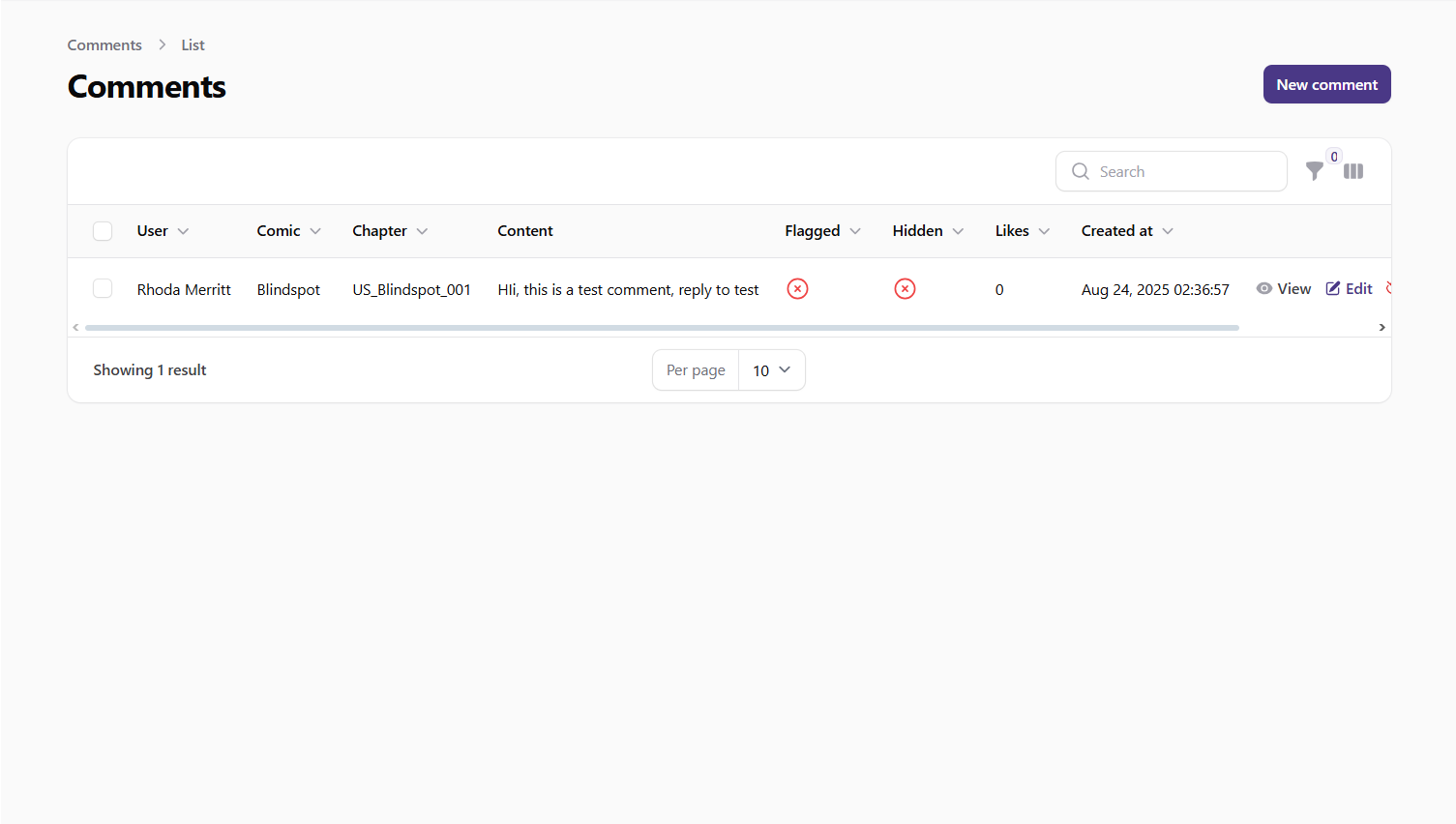 Screenshot: Comments list view
Viewing Comment Details
To view detailed information about a comment:
- Find the comment in the table
- Click on the View button (eye icon) in the actions column
The comment detail page shows comprehensive information about the comment, including:
- Full comment content
- User information
- Associated comic and chapter
- Parent comment (if it's a reply)
- Moderation status (flagged, hidden)
- Flag reason (if applicable)
- Timestamps
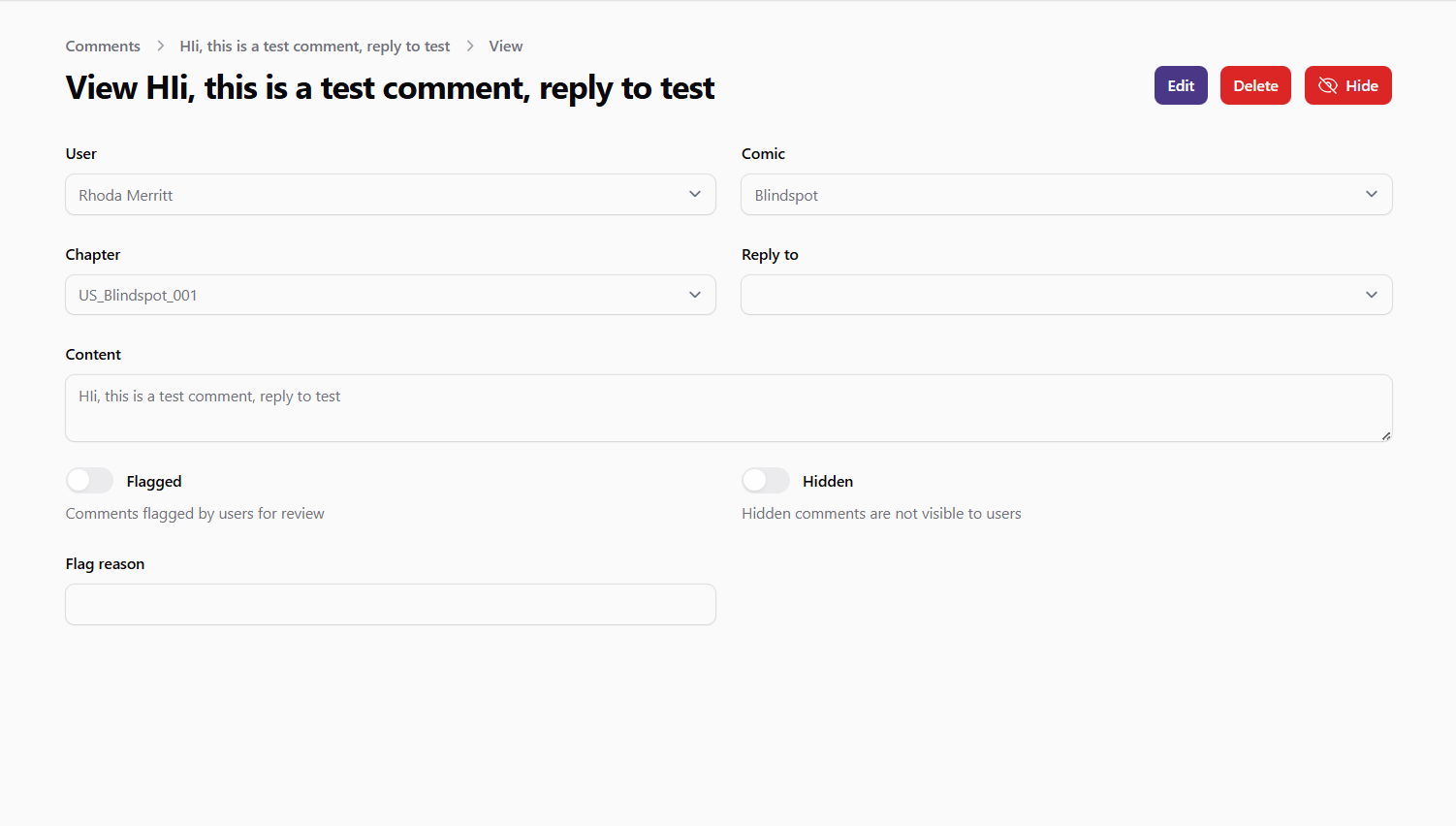 Screenshot: Comment details view
Creating a New Comment
While comments are typically created by users on the frontend, administrators can create comments if needed:
- Click the New Comment button at the top of the Comments page
- Fill in the required information:
- User: Select the user who is posting the comment
- Comic: Select the comic the comment is for
- Chapter: Select the chapter the comment is for
- Reply to: If this is a reply to another comment, select the parent comment (optional)
- Content: Enter the text of the comment
- Flagged: Toggle if the comment should be flagged for review
- Hidden: Toggle if the comment should be hidden from users
- Flag Reason: Enter a reason if the comment is flagged (optional)
- Click Create to add the new comment
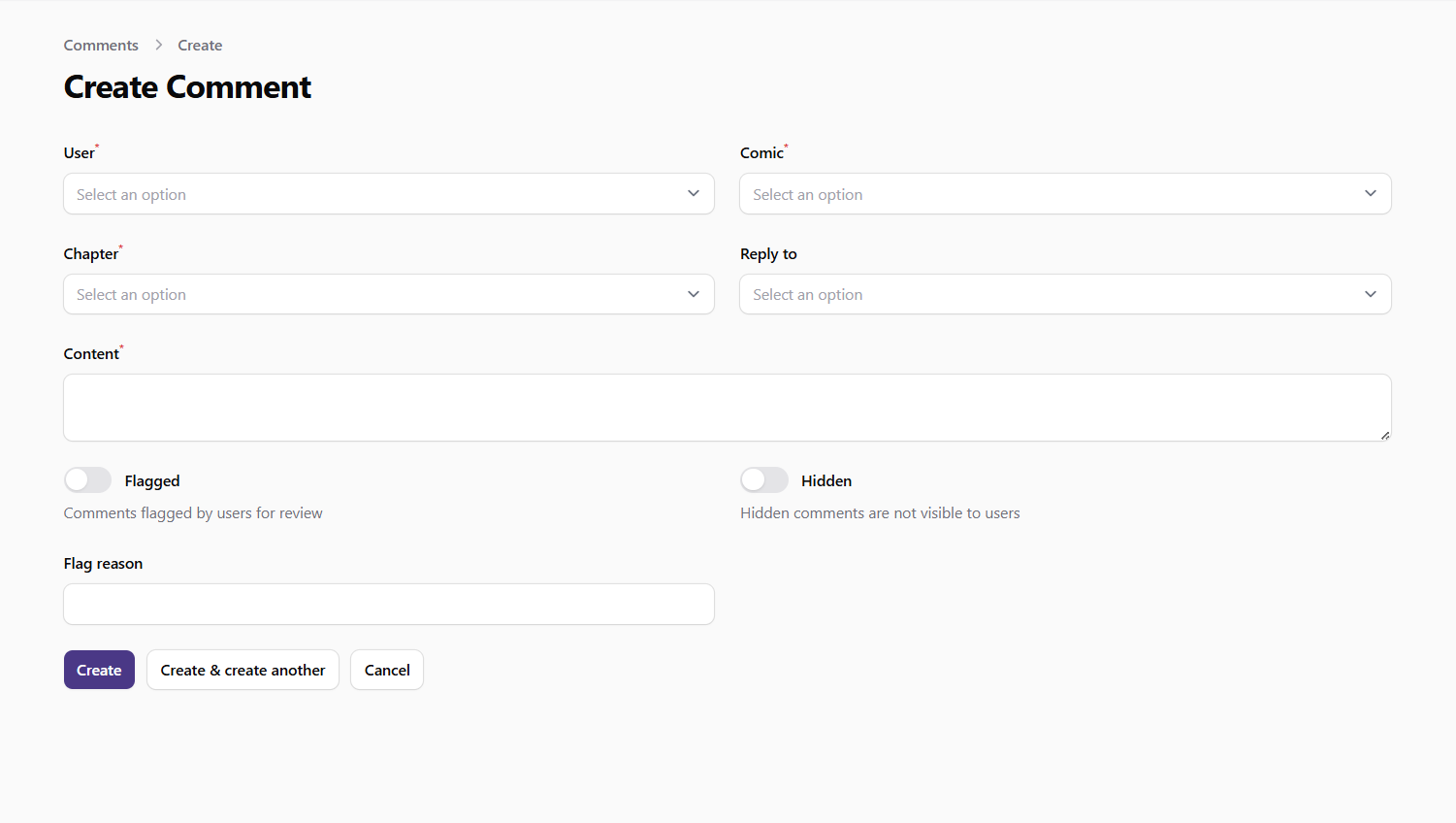 Screenshot: Create comment form
Editing a Comment
To edit an existing comment:
- Find the comment in the table
- Click the Edit button (pencil icon) in the actions column
- Update the comment information as needed:
- User: Change the user associated with the comment
- Comic: Change the associated comic
- Chapter: Change the associated chapter
- Reply to: Change the parent comment (if applicable)
- Content: Edit the text of the comment
- Flagged: Toggle the flagged status
- Hidden: Toggle the hidden status
- Flag Reason: Update the flag reason (if applicable)
- Click Save to apply your changes
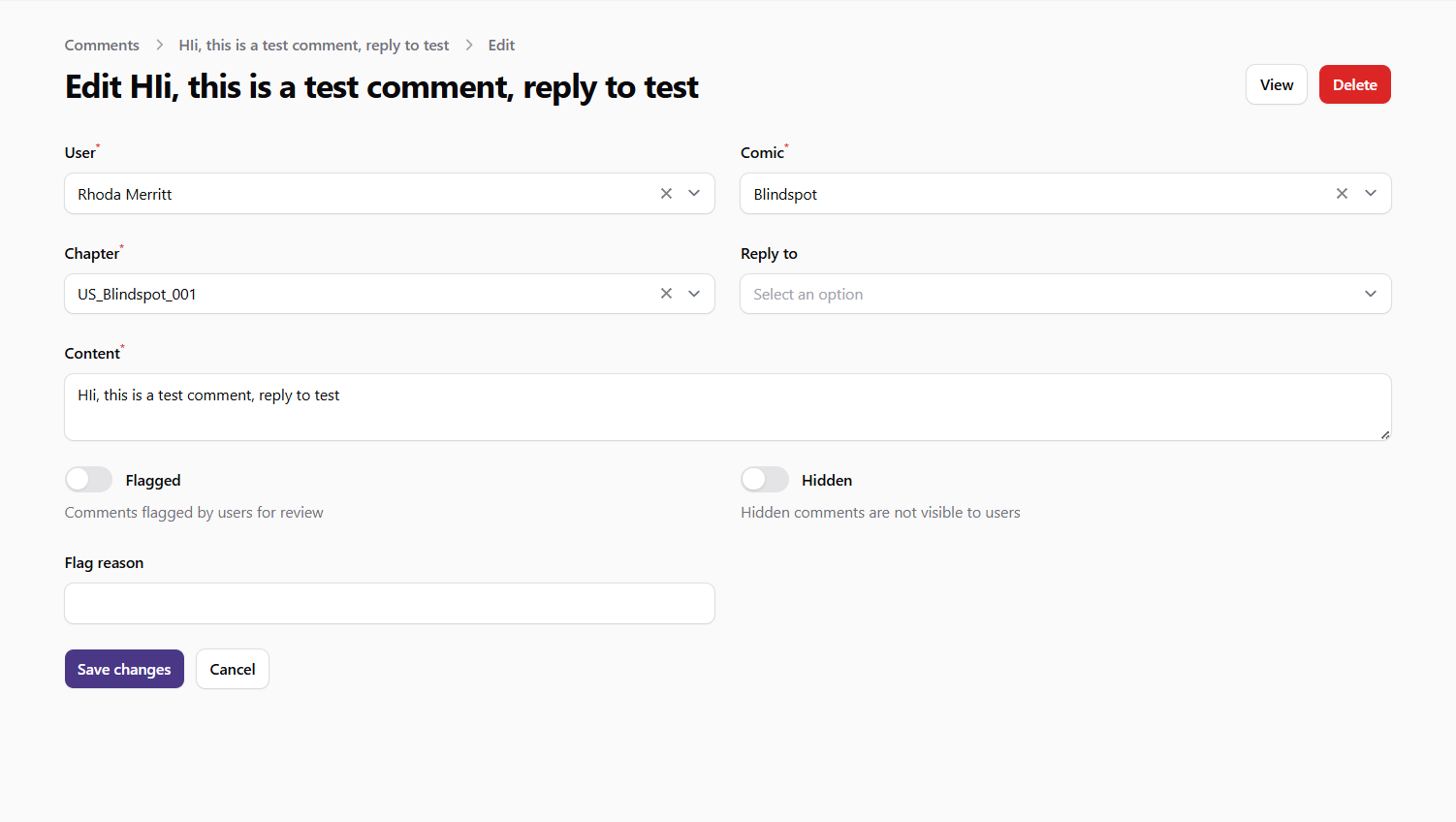 Screenshot: Edit comment form
Moderating Comments
Comment moderation is a key responsibility for administrators. The system provides several actions to help manage comments effectively:
Approving Comments
To approve a flagged or hidden comment:
- Find the comment in the table
- Click the Approve button (check icon) in the actions column
- The comment will be unflagged and made visible to users
Hiding Comments
To hide a comment from users:
- Find the comment in the table
- Click the Hide button (eye-slash icon) in the actions column
- The comment will be hidden from users but still visible to administrators
Showing Comments
To make a hidden comment visible again:
- Find the comment in the table
- Click the Show button (eye icon) in the actions column
- The comment will become visible to users again
Deleting Comments
To delete a comment:
- Find the comment in the table
- Click the Delete button (trash icon) in the actions column
- Confirm the deletion when prompted
Deleted comments are moved to trash and can be restored if needed.
Restoring Deleted Comments
To restore a deleted comment:
- Use the Trashed filter to view deleted comments
- Find the comment in the table
- Click the Restore button in the actions column
Permanently Deleting Comments
To permanently delete a comment:
- Use the Trashed filter to view deleted comments
- Find the comment in the table
- Click the Force Delete button in the actions column
- Confirm the permanent deletion when prompted
Bulk Actions
You can perform actions on multiple comments at once:
- Select comments by checking the boxes next to them
- Use the bulk actions menu to choose an action:
- Approve Selected: Approve multiple flagged or hidden comments
- Hide Selected: Hide multiple comments from users
- Show Selected: Make multiple hidden comments visible
- Delete Selected: Move multiple comments to trash
- Restore Selected: Restore multiple deleted comments
- Force Delete Selected: Permanently delete multiple comments
Managing Flagged Comments
Comments can be flagged by users when they contain inappropriate content. To manage flagged comments:
- Use the Flagged filter to view all flagged comments
- Review each flagged comment and its flag reason
- Take appropriate action:
- Approve: If the comment is appropriate and should remain visible
- Hide: If the comment violates community guidelines
- Edit: To modify problematic parts of the comment
- Delete: To remove the comment entirely
Best Practices
- Regularly review flagged comments to maintain a positive community
- Be consistent in applying community guidelines
- Consider the context of comments before taking moderation actions
- Use bulk actions for efficient moderation of multiple similar comments
- Keep an eye on users who consistently have comments flagged or hidden
- Respond promptly to inappropriate content to maintain community trust
- Document your moderation decisions for transparency and consistency