Managing Comics
This guide explains how to manage comics in the admin panel. As an administrator, you can view, edit, and manage comics and their associated content.
Accessing the Comics Section
- Log in to the admin panel with your administrator credentials
- Navigate to the main sidebar navigation
- Click on Comics to access the comic management interface
Viewing Comics
The Comics page displays a table with all comics in the system. The table includes the following information:
- Title: The comic's title
- Artist: The creator of the comic
- Total Chapters: Number of chapters in the comic
- Status: Current publication status (Published, Draft, etc.)
- Editor's Pick: Whether the comic is featured as an editor's pick
- Total Reads: How many times the comic has been read
- Unique Readers: Number of different users who have read the comic
- Completion Rate: Percentage of readers who complete the comic
You can:
- Search for comics by title or artist using the search bar
- Sort the table by clicking on column headers
- Filter comics based on status, categories, language, or editor's picks
- Group comics by their status
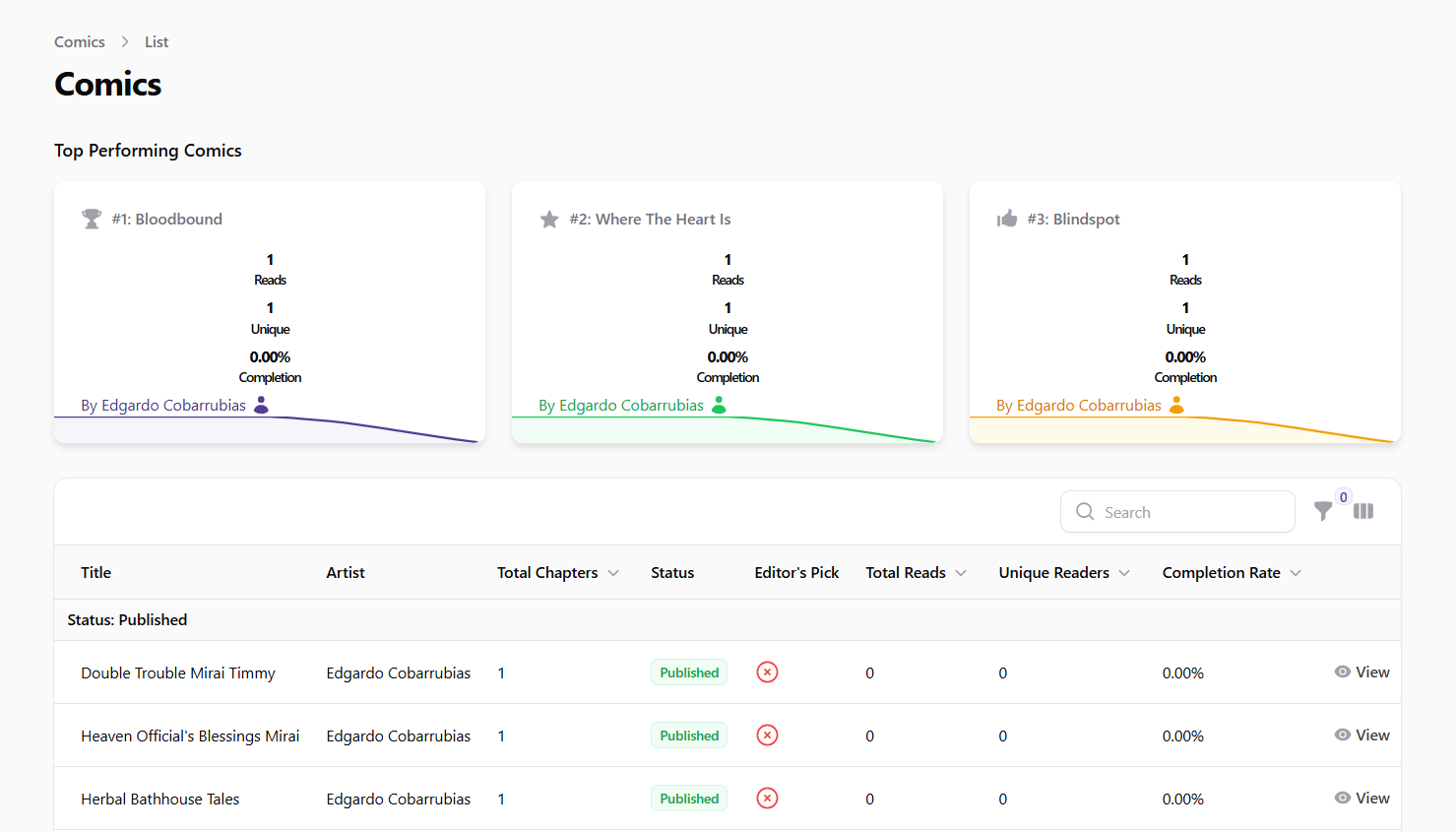 Screenshot: Comics list view
Viewing Comic Details
To view detailed information about a comic:
- Find the comic in the table
- Click on the View button (eye icon) in the actions column
The comic detail page shows comprehensive information about the comic, including:
- Basic details (title, description, artist)
- Status and categorization
- Images (cover, main, thumbnail, etc.)
- Associated chapters
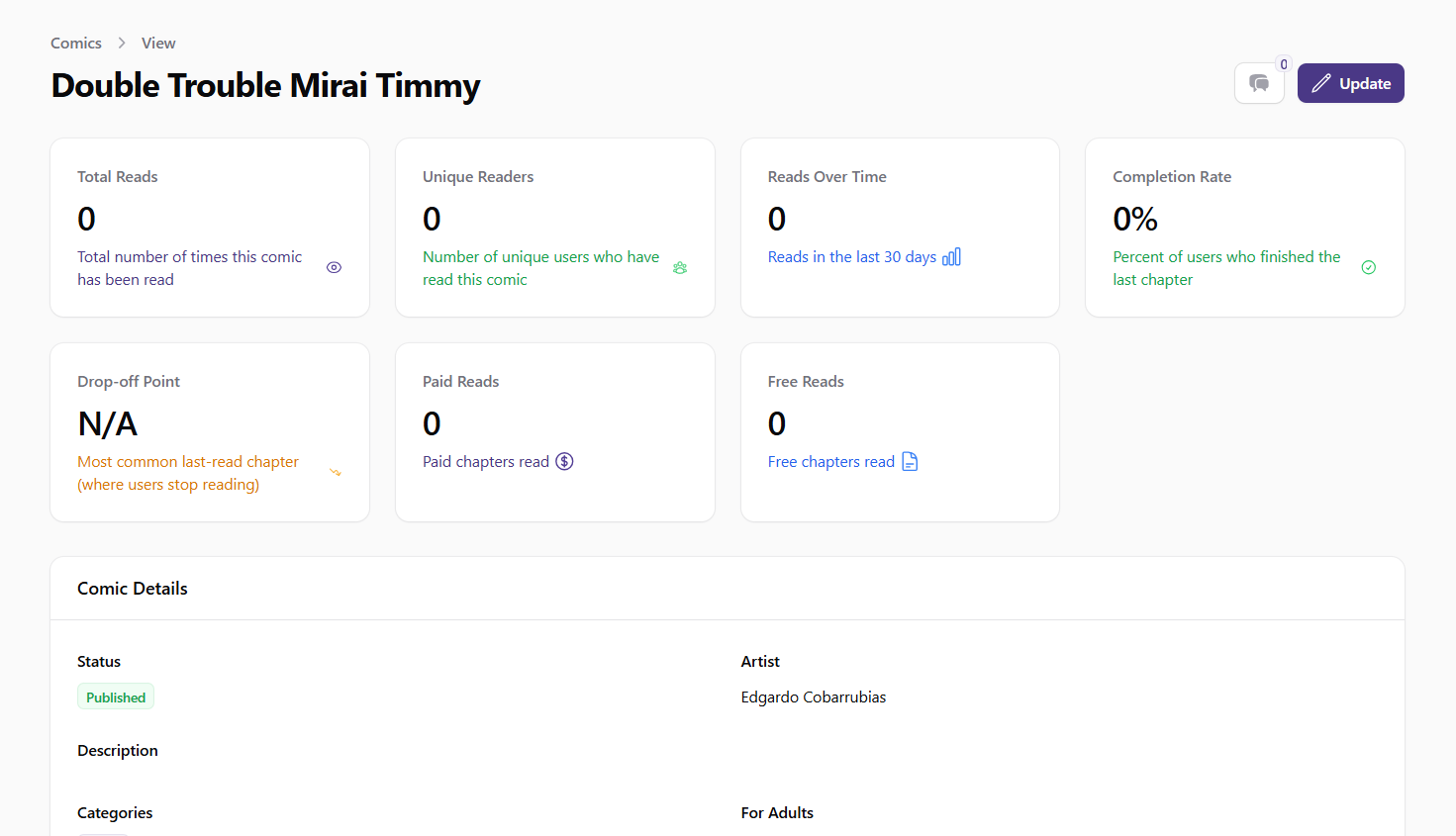 Screenshot: Comic details view
Editing a Comic
To edit a comic's information:
- Find the comic in the table
- Click the Edit button (pencil icon) in the actions column
- Update the comic information as needed across different sections:
Comic Details Section
- Title: Update the comic's title
- Description: Update the comic's description
Configuration & Categorization Section
- Status: Change the publication status (Published, Draft, etc.)
- Categories: Assign or remove categories
- For Adults: Toggle adult content designation
- Editor's Pick: Feature the comic as an editor's pick
- Default Language: Set the comic's primary language
Images Section
- Cover Image: Main representation of the comic (600x900px recommended)
- Main Image: Primary image for the comic's detail page (1200x1800px recommended)
- Thumbnail Image: Smaller version for listings (300x450px recommended)
- Ads Image: Used for promotional areas (1600x500px recommended)
- Background Image: Background for detail pages (1920x1080px recommended)
- Social Media Image: Optimized for sharing (1200x630px recommended)
- Gallery Images: Additional showcase images (various sizes)
- Click Save to apply your changes
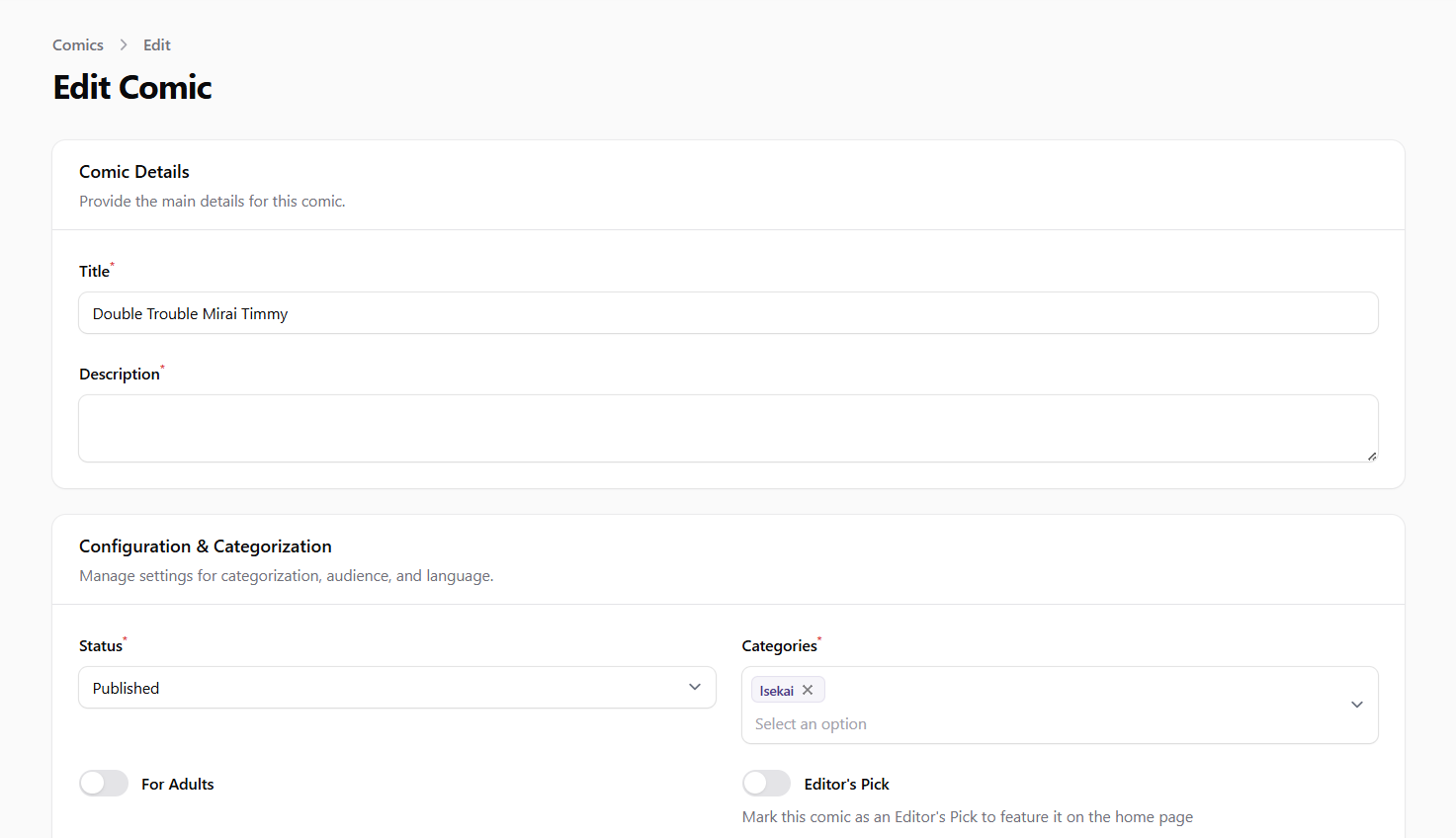 Screenshot: Edit comic form
Managing Comic Status
The status of a comic determines its visibility and availability to readers:
- Navigate to the comic's edit page
- In the Configuration & Categorization section, find the Status dropdown
- Select the appropriate status:
- Published: Visible and available to all readers
- Draft: Not publicly visible, still in development
- Scheduled: Set to be published at a future date
- Archived: No longer actively updated but still available
- Rejected: Not approved for publication
- Click Save to apply the status change
Managing Comic Categories
Categories help readers find comics based on genre or theme:
- Navigate to the comic's edit page
- In the Configuration & Categorization section, find the Categories field
- Select one or more categories from the dropdown
- Click Save to apply the changes
Managing Comic Chapters
Chapters are the individual episodes or installments of a comic:
- Navigate to the comic's detail page
- Scroll to the Chapters section
- View the list of chapters associated with the comic
- Use the actions available to manage chapters:
- View: See chapter details
- Edit: Modify chapter information
- Delete: Remove a chapter
For more detailed information on chapter management, see the Managing Chapters documentation.
Viewing Comic Analytics
The comics list provides valuable analytics about reader engagement:
- Total Reads: The total number of times the comic has been read
- Unique Readers: The number of different users who have read the comic
- Completion Rate: The percentage of readers who complete reading the comic
These metrics help you understand which comics are performing well and resonating with your audience.
Viewing the Public Page
To see how a comic appears to readers:
- Find the comic in the table
- Click the View Public Page button in the actions column
- The comic's public page will open in a new tab
This allows you to experience the comic as readers do and verify its presentation.
Best Practices
- Regularly review comic content to ensure it meets community guidelines
- Use the editor's pick feature to highlight high-quality or trending comics
- Monitor analytics to identify successful comics and content strategies
- Ensure appropriate categorization to help readers find relevant content
- Verify that all required images are properly uploaded and displayed
- Check that adult content is properly marked to protect younger readers